Cascade Record & Image Deletes
Cascade Record and Image DeletesIn this example we will look at deleting a category in a typical product catalog with Product_Categories, Products, and Versions. Having more than one table imposes difficulties that can only be overcome by a little hand coding and modification of stock UD behaviors. This tutorial details how to set up the relationships in an Access database for cascade deletes of related records [*] and how to implement server side code to delete images associated with related records. [†] I will set up some conventions to make it easy to follow the tutorial. This tutorial assumes you have created a recordset navigation page to select the record you want to delete and a method to select the desired record. It assumes you have added a form to the delete page with a method to submit the delete. It assumes you have created an Access database with the described table structure or your customized version of it. Color conventions will be used to make following the tutorial as simple as possible. Stock UltraDev code blocks that are not modified in this tutorial will be black. Tutorial code will be blue. Comments pertinent to the tutorial will be grey. We will begin with the Access database.
|
||
|
[*] The Access Upsizing Wizard will convert the relationships to triggers when upsizing the Access database to SQL Server removing any need to write the SQL statements. [†] This same method of coding will work with structures that have fewer or more tables by merely adding or taking away recordsets and loops. |
 Relationships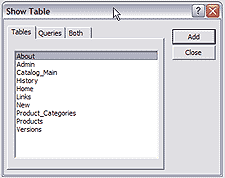
 shown
in the heading of this section. It is found in the main toolbar. The
relationships wizard will appear as shown above. Highlight and add the
tables for which you want to define relationships. Add the Product_Categories,
Products, and Versions tables to the relationships layout window. Next
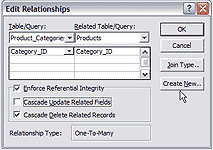
click on the Category_ID field of the Product_Categories table and drag
the icon that appears at your mouse pointer to the Category_ID field
of the Products table. The define relationships window will open.
shown
in the heading of this section. It is found in the main toolbar. The
relationships wizard will appear as shown above. Highlight and add the
tables for which you want to define relationships. Add the Product_Categories,
Products, and Versions tables to the relationships layout window. Next
click on the Category_ID field of the Product_Categories table and drag
the icon that appears at your mouse pointer to the Category_ID field
of the Products table. The define relationships window will open.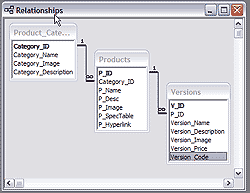 Save
your changes and close Access.
Save
your changes and close Access.James Threadgill
 James Threadgill has authored numerous tutorials on ASP and ASP.NET web development, published on such sites as the Dynamic Zones and MSDN Accademic Alliance. He co-authored the Sam's book Dreamweaver MX: ASP.NET Web Development.
James first began computer programming in 1995 while attending Alvin Community College. He completed a certificate of computer science program and an Associate of Arts degree at Alvin before going on to the University of Houston-Clear Lake where he was awarded a Bachelor of Science and a Master of Arts.
James publishes fiction, poetry, and visual arts under the name Wayne James. His fiction first appeared in Raconteur in 1995 and since has been published numerous times: in Hadrosaur Tales 5 and 7, Bayousphere, and in the Write Gallery e-zine. His poetry first appeared in the small press magazine Lucidity in 1996 and has been published numerous times since. His collection of fiction and poetry, When Only the Moon Rages, was released in 2000. Most recently his work appeared in Tales of the Talisman winter 2010 and spring 2011 issues. James currently attends graduate school at the University of Houston and owns and operates small web design and internet marketing firm, WWWeb Concepts, with his wife, Karen, in Houston, TX USA.
Comments
DMX 2004 and the Cascade delete
Firstly thank you for your tutorials, I am very grateful. I am going to give the Cascade Record and Images deletes a go and was wondering, using mx2004 has things changed any to make it a little easier to do this.
Regards
Kenny
RE: DMX 2004 and the Cascade delete
You are welcome, Kenny. I was quite ill when you posted, but I'm back now!
Cascading file deletes are pretty complex considering the loops required. I wouldn't expect DMX to make this sort of thing point and click anytime soon.
RE: RE: DMX 2004 and the Cascade delete
re " I wouldn't expect DMX to make this sort of thing point and click anytime soon."
I have found the MX Kollection from Interakt does just that.
regards
Kenny
You must me logged in to write a comment.