Creating a visual gradient background just like
the one on the Adobe website with one easy CSS rule.
Step 1.
Create a new graphic file with Fireworks (or another graphic tool) with
the following dimensions:
- width: 1px
- height: 1000px
Insert a rectangle with the same dimensions and use the gradient tool
to create the gradient (see fig.1). Change your colors as desired.
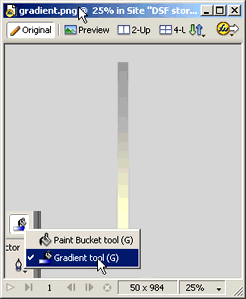 figure 1 figure 1
The important thing is that you choose a "web-safe color" for the end
color (bottom), because we are going to define this color in our webpage
as the background color as well (considering lower resolution screens).
Export this file in the JPEG format and save it in your site root.
STEP 2.
Now open up a document and create a new CSS rule within Dreamweaver (see
fig.2 and 3).
Choose the BODY tag and define this in a separate CSS or in the current
document only. figure 2.
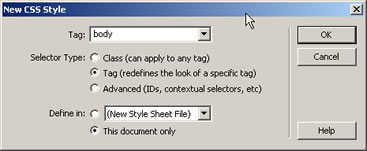
Choose the category "background" and choose the same background color
as the end color of your graphic file. Choose your just created gradient
JPEG file. Choose repeat-x as repeat method (horizontal repeat) and apply
the rule to the page.
figure 3.
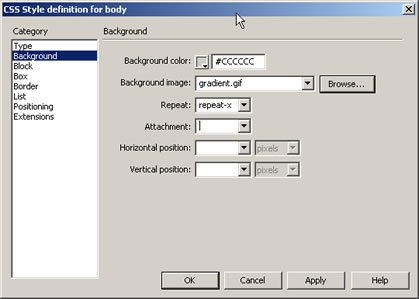
The resulting CSS code in your document will look like this:
<style type="text/css">
<!--
body {
background-color: #CCCCCC;
background-image: url(images/gradient_bkg.jpg);
background-repeat: repeat-x;
}
-->
</style> You should already see the effect in your document within Dreamweaver
(create a table with a height of 1200px to see the effect).
That's it.
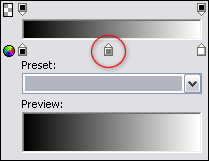
Tip:
Create an extra step in your gradient to make it look "smoother" (red circle):
Note:
making the path to the gradient JPEG absolute will make it also
work in older Netscape browser versions. I haven't tested it on all browsers!
|
 Discover the power of interactive presentations – the Sliding Billboard
! Organize your work greatly in a virtual book, which auto scrolls and
enables your users to slide from page to page or chapter to chapter
naturally. You can present any type of work this way: your portfolio,
photo albums, products index, web shop, ads and much more. Choose from
the 13 cool CSS designs included, so your billboard always looks great and suites your site perfectly.
Discover the power of interactive presentations – the Sliding Billboard
! Organize your work greatly in a virtual book, which auto scrolls and
enables your users to slide from page to page or chapter to chapter
naturally. You can present any type of work this way: your portfolio,
photo albums, products index, web shop, ads and much more. Choose from
the 13 cool CSS designs included, so your billboard always looks great and suites your site perfectly.
 Marcellino Bommezijn is one of the managers at dmxzone.com. He is a contributor on the tutorials section.
Comments
RE: RE: Demo link not working
RE: Demo link
Demo is back on-line again!
goin' it all the way
Nice tutorial, though if using CSS why not go all out?
<!--
BODY {
filter:progid:DXImageTransform.Microsoft.Gradient(endColorstr='#BDBABD', startColorstr='#9C969C', gradientType='0');
}
-->
</STYLE>
I know this is only an IE filter, though I'm sure the Alpha filter can be adapted.
Love your work...
You must me logged in to write a comment.