Setting up an Automated Import/Export in SQL Server 2000
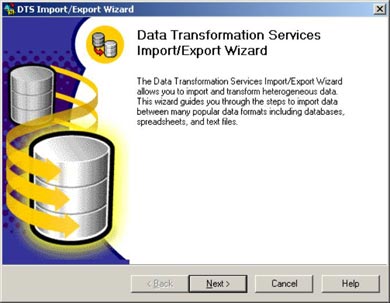
Select the Database to Import to / Export from, Right click the database and select … All Tasks …Import Data or Export Data
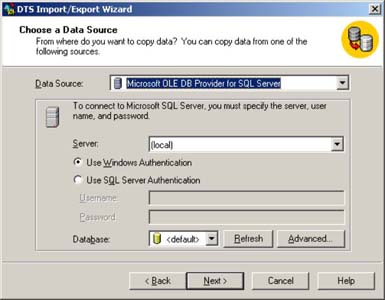
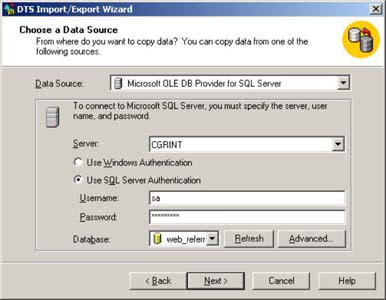
Enter the name of the SQL server to copy the data from (if it is the machine you are working on you can leave this as (local).
Select Use SQL server Authentication, then enter your login details.
Then Select the Database that you wish to copy from.
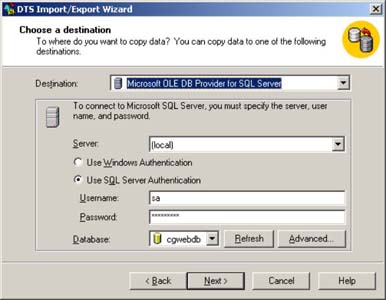
Select the SQL server you wish to copy to.
Enter the SQL Server authentication details, and then select the Database you are copying to.
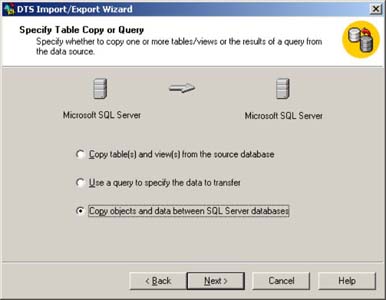
Select to Copy Objects and data, and then select the tables you wish to copy across.
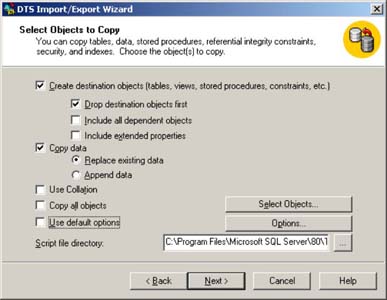
Click Options
Untick Copy database users and database roles
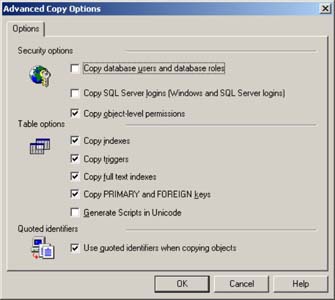
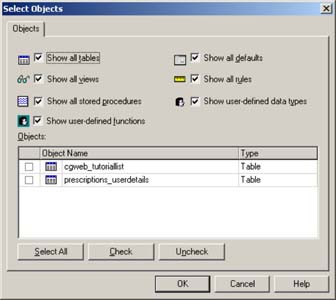
Click Select Objects
And select the tables you wish to Import/export
Select the Schedule DTS package for later execution, select the  on the right hand side to enter the schedule.
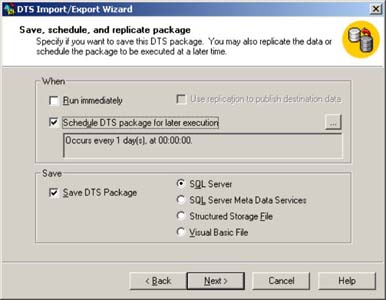
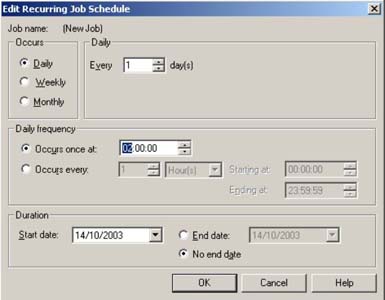
Give the DTS package a name, and ensure the Server name is set to the local SQL server and enter the SA user details for SQL server authentication
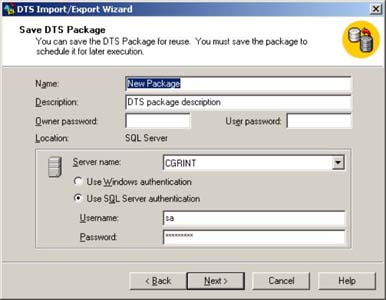
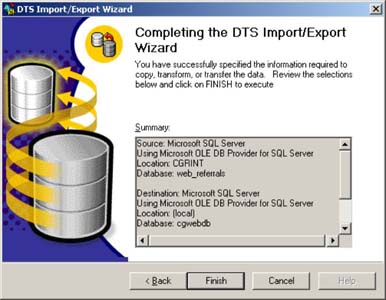
Check the details are all correct and select Finish to save this package.
 " Since graduating from university, I have worked with Charities and the Public sector, with my longest time being 3 years with the NHS until returning to freelance in 2003.