This tutorial is the second of a three part series on image delete options using George Petrov's Pure ASP upload. The first shows how to handle image delete and remove options on an update form with a single image. This tutorial looks at update forms with multiple image fields. Having more than one image imposes limitations on image remove and delete options, but with a bit of imaginative thinking and a little hand coding we'll see that we can provide users with a full array of image handling options.
Multiple Image Delete & Remove Options for Pure ASP Upload
Intermediate Image Delete & Remove Options for Pure ASP Upload 2.07: Multiple ImagesFirst I will set up some conventions to make it easy to follow the tutorial. This tutorial assumes you have created a recordset to populate your form with existing data. If you have not, you will need to create a recordset. Stock UltraDev code that is not concerned with the purposes of this tutorial will be is shown in black. Tutorial code will be blue. Variables that should be unique to your page are shown in red. And comments pertinent to the tutorial will be grey. The first thing you will need to do is add conditional region to your
form for each image field. Our sample application will have three images
on the update form, so we will need four conditional regions. The conditional
region will display two elements if the database image field has a value
other than null. The first will be the image itself. The second is the
"delete_image" checkbox. In this case we will have a delete_image1
through delete_image3 checkboxes and a checkbox named delete_image to
simultaneously delete all three images. At this point it might be wise
to consider how you have named your images fields in the database. If
you use a number to differentiate your image fields, you will find things
much easier later on. For the example, I named my image fields P_image1,
P_image2, P_image3 or something along those lines. In our current example
I repeat the code below three times, changing the appropriate names each
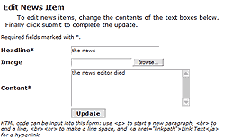
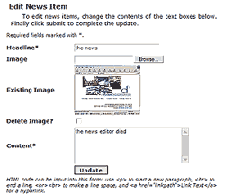
time. The images below show how this works on page with a single image. <%
Then I put this conditional region near the end of my form below the
last image. It contains the "delete_image" checkbox, which allows
the user to simultaneously remove all images from the page. It is only
displayed if at least one of the images exists. <% The "delete_image" checkbox does two things if checked. It turns off the skip empty fields feature of Pure ASP Upload and it turns on the code that deletes all image files on page from the server. Turning off the skip empty fields feature allows us to set the field P_imageVAR fields in the database back to a null value. And deleting the old image keeps web server resources available for fresh content. Let's get started on the update code on the next page.
|
James Threadgill
 James Threadgill has authored numerous tutorials on ASP and ASP.NET web development, published on such sites as the Dynamic Zones and MSDN Accademic Alliance. He co-authored the Sam's book Dreamweaver MX: ASP.NET Web Development.
James first began computer programming in 1995 while attending Alvin Community College. He completed a certificate of computer science program and an Associate of Arts degree at Alvin before going on to the University of Houston-Clear Lake where he was awarded a Bachelor of Science and a Master of Arts.
James publishes fiction, poetry, and visual arts under the name Wayne James. His fiction first appeared in Raconteur in 1995 and since has been published numerous times: in Hadrosaur Tales 5 and 7, Bayousphere, and in the Write Gallery e-zine. His poetry first appeared in the small press magazine Lucidity in 1996 and has been published numerous times since. His collection of fiction and poetry, When Only the Moon Rages, was released in 2000. Most recently his work appeared in Tales of the Talisman winter 2010 and spring 2011 issues. James currently attends graduate school at the University of Houston and owns and operates small web design and internet marketing firm, WWWeb Concepts, with his wife, Karen, in Houston, TX USA.
Comments
remove checkbox
How do I remove just 1 or 2 images?
How can I use checkbox to "delete_images1" , "delete_images2" and "delete_images3" with out deleting all images?
You must me logged in to write a comment.