Ajax AutoComplete Manual
A detailed information about the Ajax AutoComplete extension
How many times have you struggled with entering long lists, while you had to lookup a product or country? AJAX AutoComplete will make your life easier. Your user can get a filtered dropdown with choices after entering a few characters, enabling quick search and selection without having to enter long text.


Reference: Advanced Customization
Introduction
In this chapter we are going to show you
the layout and design flexibility our extension offers. By editing the autocomplete.css
file you can set a huge range of options. We'll discuss the most important
ones.
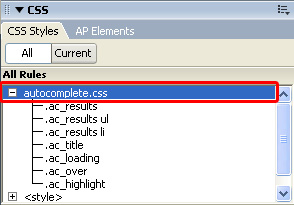
You can open the CSS file in Dreamweaver by double clicking on it in the CSS panel:
Changing the
Completion Box Properties
This table explains how to change the colors and borders of your completion box.
Item to change |
Relevant CSS rule |
Property and value to add or change |
Background color |
.ac_results |
background-color |
Border Thickness and Color |
border |
|
The color of highlighted characters of the completion box that match with the entry field |
.ac_highlight |
color |
Background color of the selected item in the completion box |
.ac_over |
background-color |
Setting Margins and Paddings
This box explains how you change margins and padding of your completion box items.
Item to change |
Relevant CSS rule |
Property and value to add or change |
Padding around the results |
.ac_results |
padding |
The margin around the individual list items |
.ac_results li |
margin |
The margin around the list items as a group |
.ac_results ul |
margin |
The left padding around the individual list items |
.ac_results li |
padding |
The left padding on the list items as a group |
.ac_results ul |
padding |
Setting the Font Properties
This box explains how you change the font and its properties.
Item to change |
Relevant CSS rule |
Property and value to add or change |
Font of the completion list items |
.ac_results li |
font |
Font size of the completion list items |
.ac_results li |
font-size |