In this article you'll find everything you need in order to work with the DMXzone Accordion 2 Dreamweaver extension. We covered basic usage such as how to insert it on your page as well as dynamic usage. The tutorials are also available in video format. If you ever experience any troubles working with the extensions, please contact us via the support forums or the Live support during business hours.
DMXzone Accordion 2 Manual
Learn how to work with DMXzone Accordion 2
Advanced: Dynamic DMXzone Accordion 2
In this tutorial we will show you how to create DMXzone
Accordion 2 from dynamic source.
*You can also check out the video.
How to do it
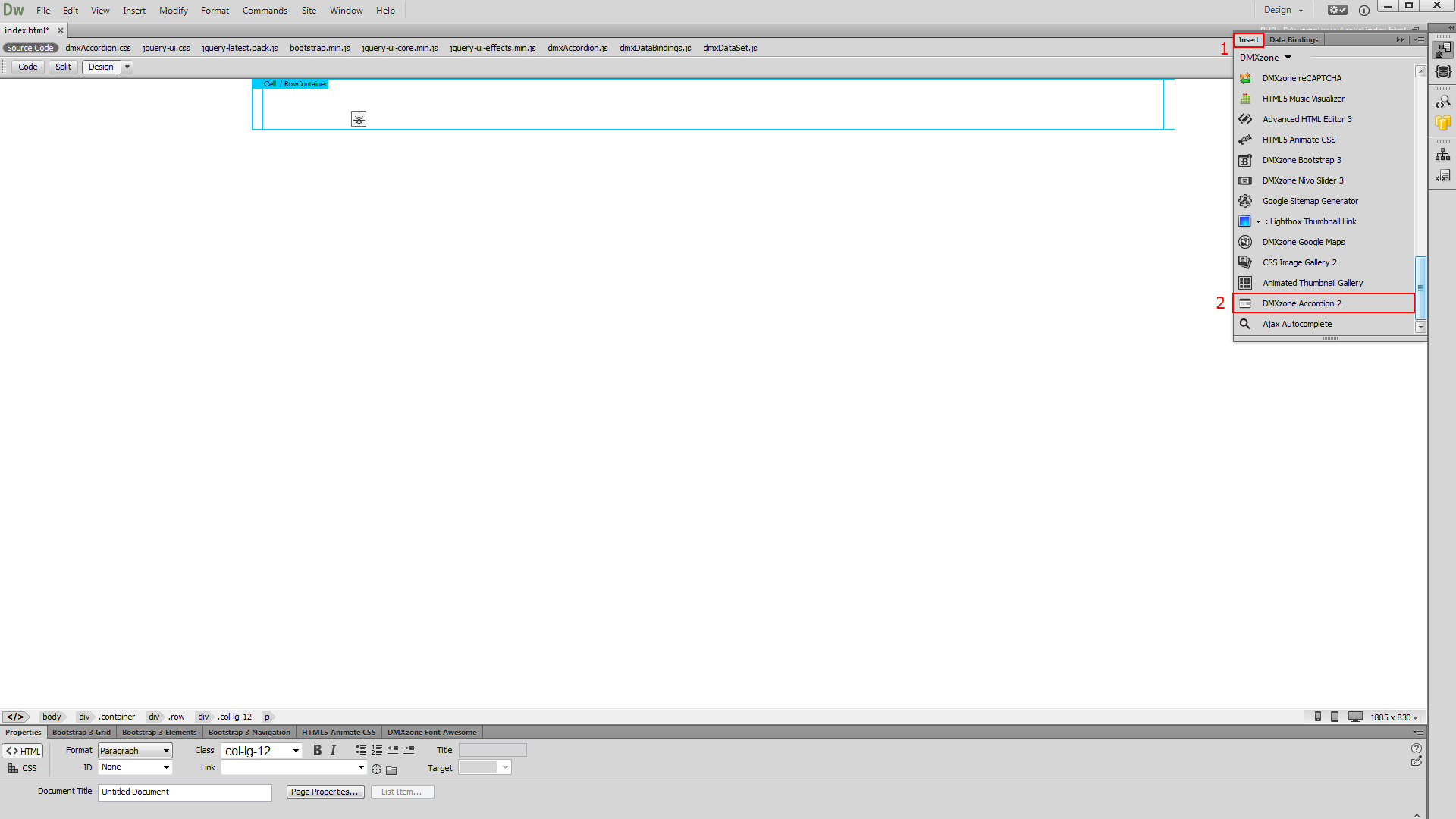
1. We created a data source, using HTML5 Data Bindings. Let's add the DMXzone Accordion 2 (2) from the insert panel (1).
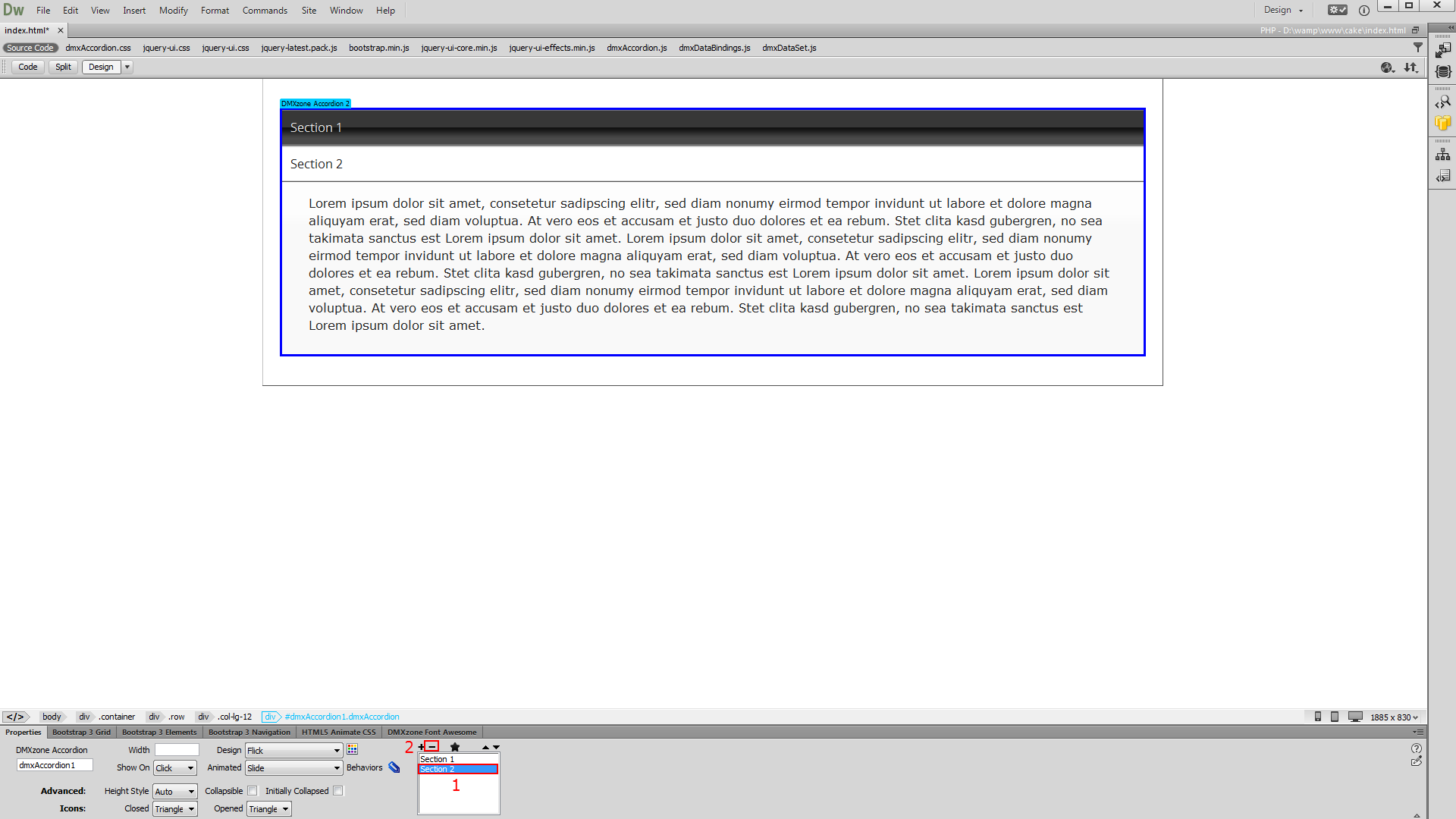
2. We need only one section in the accordion so we select (1) and remove the second one (2).
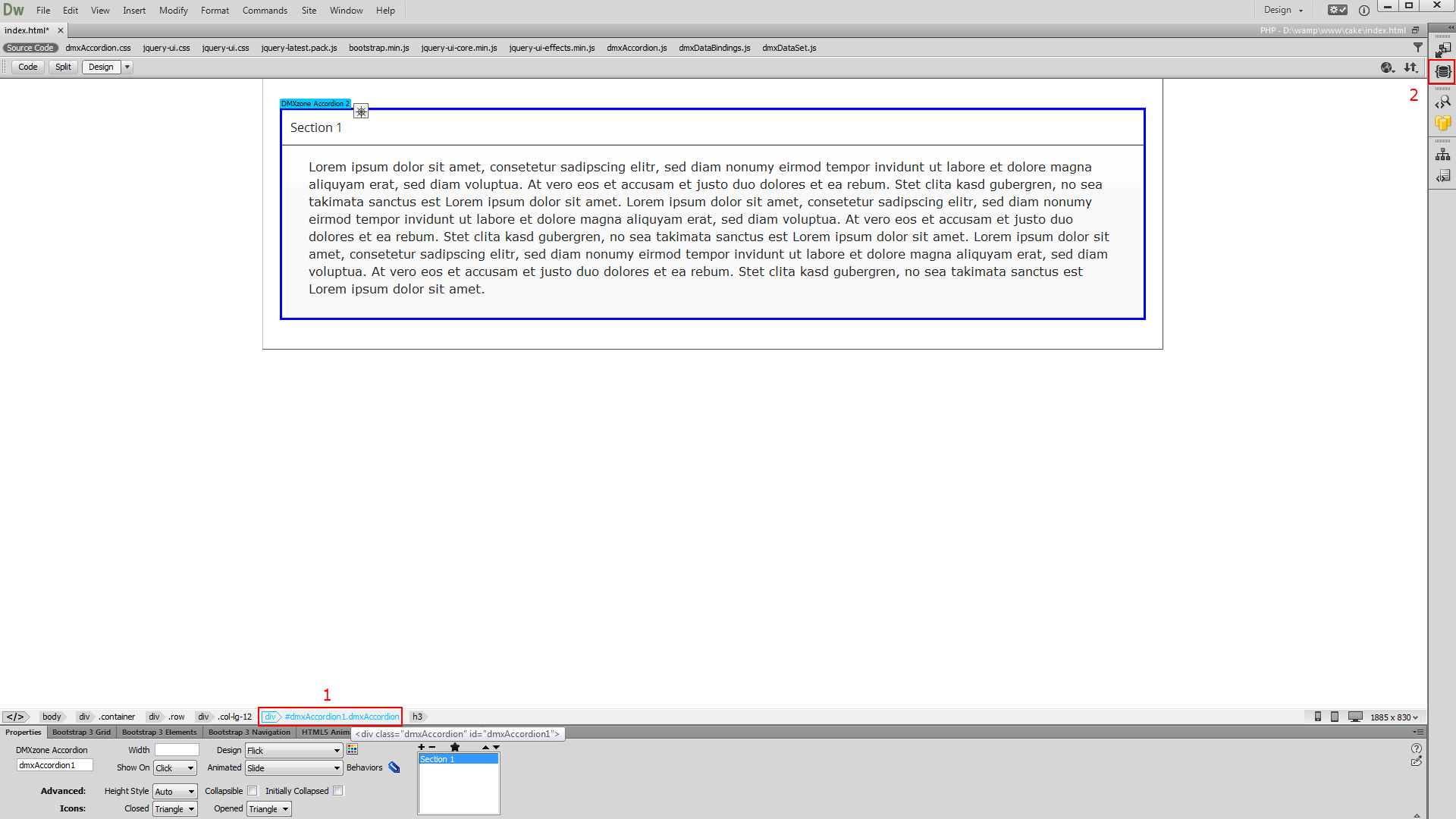
3. Now, select the accordion container. Make sure you've properly selected the accordion container, by clicking it in the properties inspector panel (1). Open the HTML5 Data Binding panel (2).
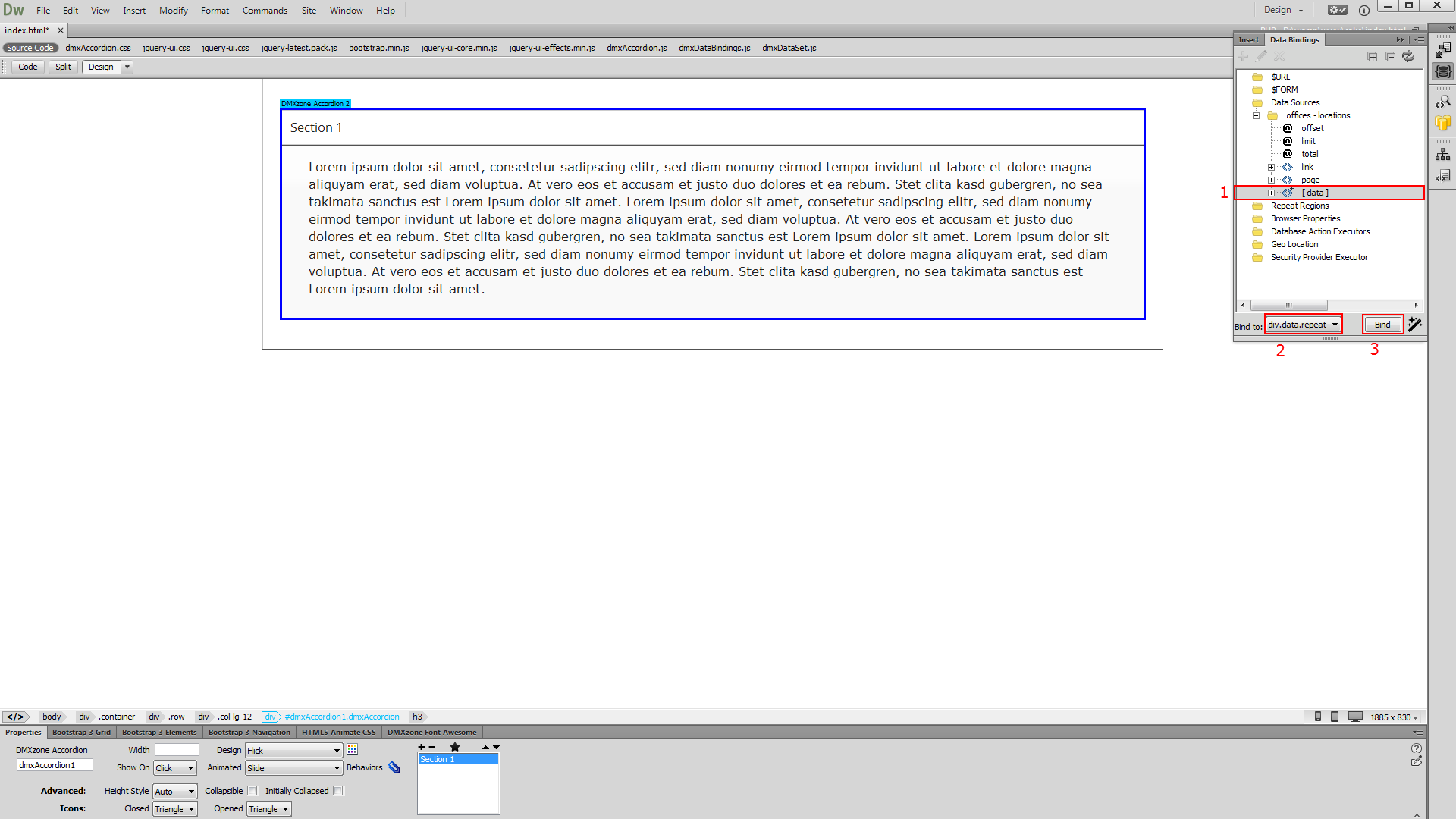
4. Select the repeating element of your data source (1) and in the bind menu, select the div.data.repeat children option (2). When you're done, click bind (3).
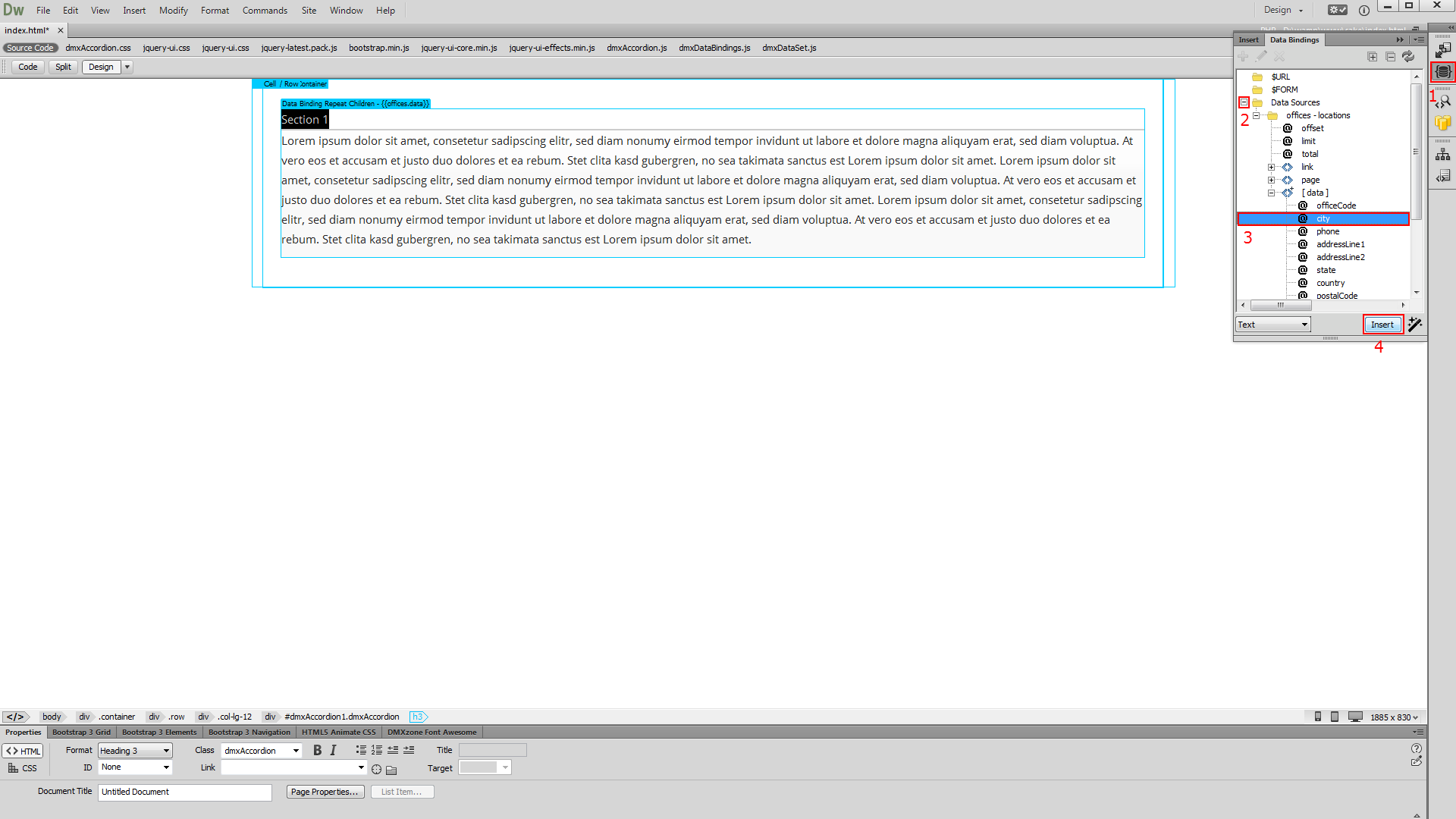
5. Now, let's add some dynamic data from our data source. First, we select the default accordion section title. Open the HTML5 Data Bindings panel (1) and expand your data source tree (2). Select the data binding (3) that you want to use for the titles of the sections and click insert (4). We do the same with the accordion section content.
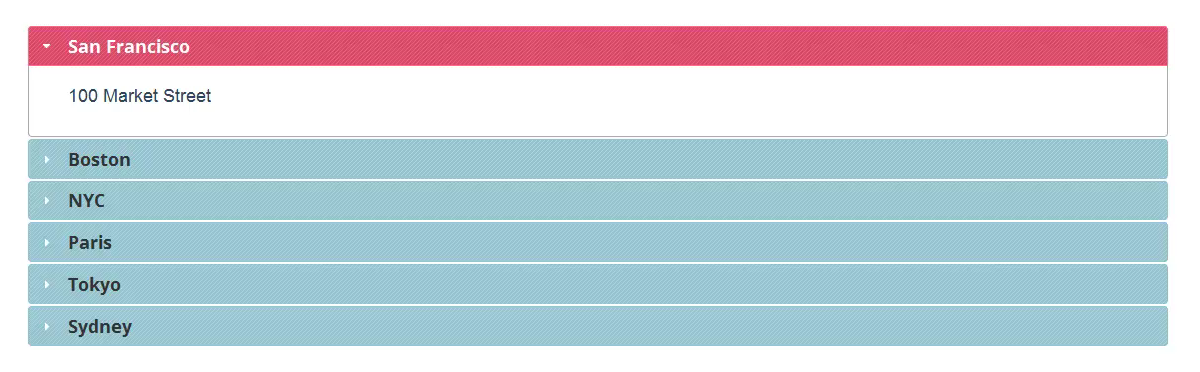
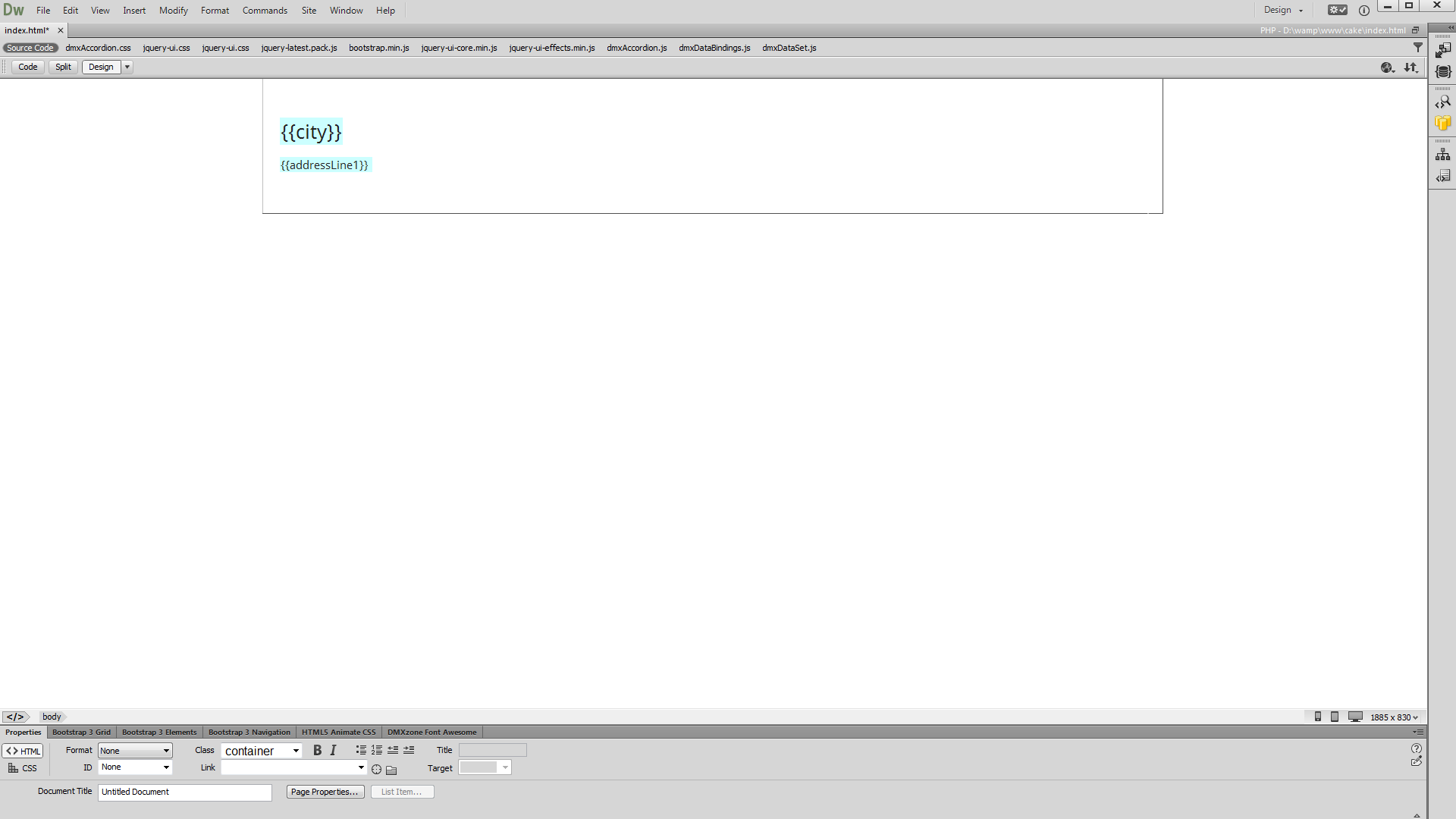
6. You can adjust the accordion appearance options, when you are done. Now, let's preview the result.
Comments
Be the first to write a comment
You must me logged in to write a comment.